
How to Add "Login with Google" to Django in 10 Minutes (The Easy Way)
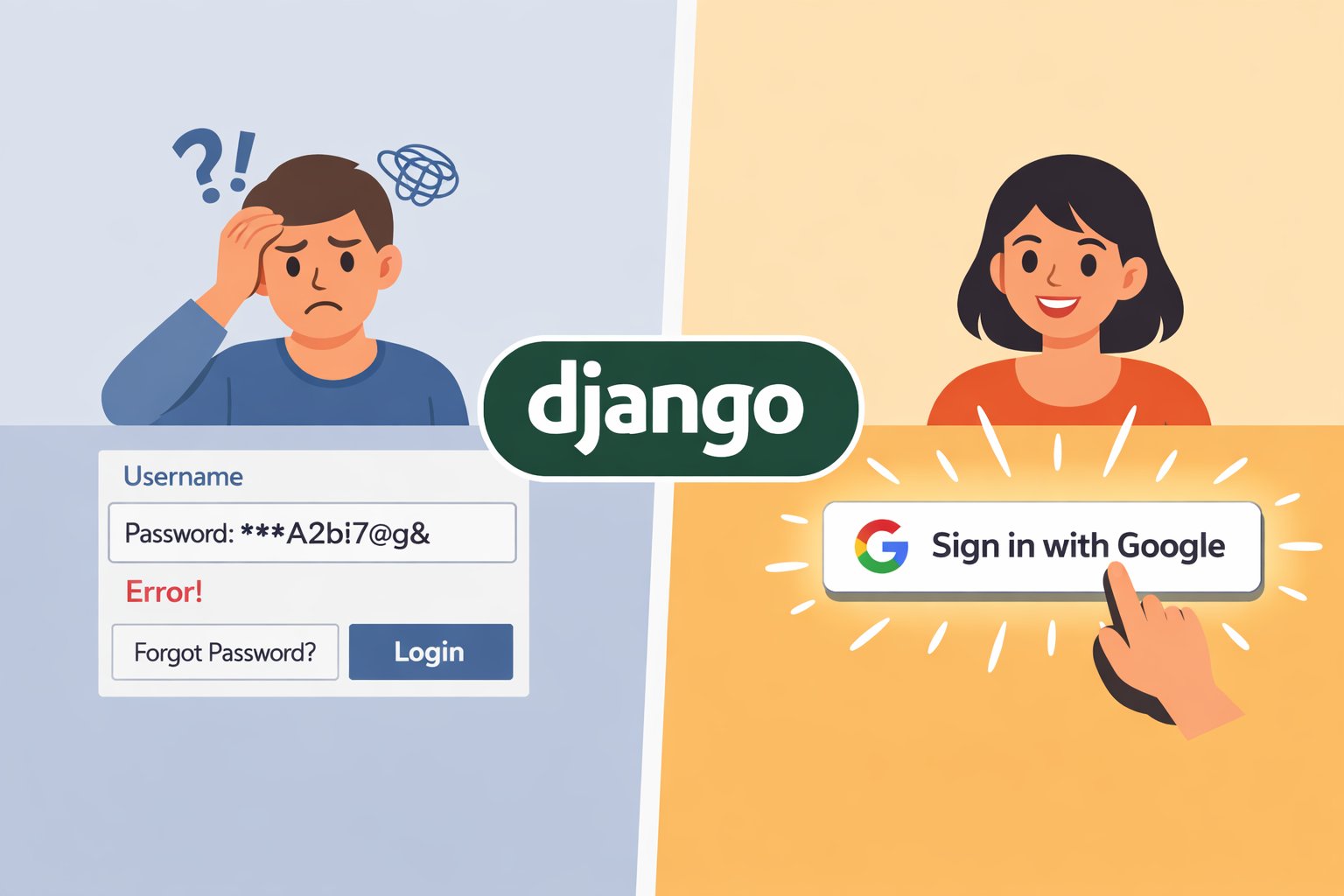
Let's face it: nobody likes remembering passwords. If your website requires users to create a new account with a new password, 30% of them will just leave.
The solution? Social Authentication.
Allowing users to "Sign in with Google" improves User Experience (UX) and security instantly. In the Django world, the easiest way to do this is using a package called django-allauth.
In this guide, we will implement a fully functional Google Login system in less than 10 minutes.
Step 1: Install the Package
First, we need to install django-allauth. Open your terminal (or Docker container) and run:
pip install django-allauth
Step 2: Configure settings.py
This is the most important step. Open your settings.py file and add the following configurations.
1. Add Installed Apps: You need to add specific allauth apps to your INSTALLED_APPS list.
INSTALLED_APPS = [

   'django.contrib.sites',  # Required by allauth

   # Allauth apps
   'allauth',
   'allauth.account',
   'allauth.socialaccount',

   'allauth.socialaccount.providers.google',
]
2. Add Site ID: At the bottom of your settings file, add this line. This tells Django which "site" in the database corresponds to this settings file.
SITE_ID = 1
3. Configure Middleware: Add the allauth middleware to your MIDDLEWARE list.
MIDDLEWARE = [
   'allauth.account.middleware.AccountMiddleware',
]
4. Authentication Backends: Add this to allow users to log in via both the admin panel and Google.
AUTHENTICATION_BACKENDS = [
   'django.contrib.auth.backends.ModelBackend',
   'allauth.account.auth_backends.AuthenticationBackend',
]
5. Google Provider Settings: Add this configuration at the bottom of settings.py to define the scope (what data we want from Google) and redirect behavior.
# Provider specific settings
SOCIALACCOUNT_PROVIDERS = {
   'google': {
       'SCOPE': [
           'profile',
           'email',
       ],
       'AUTH_PARAMS': {
           'access_type': 'online',
       }
   }
}
# Redirect users here after a successful login
LOGIN_REDIRECT_URL = '/'
# Redirect users here after logout
LOGOUT_REDIRECT_URL = '/'
Step 3: Update urls.py
Open your main urls.py (the one where your admin path is). Add the allauth URLs.
from django.contrib import admin
from django.urls import path, include
urlpatterns = [
   path('admin/', admin.site.urls),

   # Add this line for Google Auth
   path('accounts/', include('allauth.urls')),
]
Now, run migrations to create the necessary database tables:
python manage.py migrate
Step 4: Get API Keys from Google Cloud
Now we need to tell Google that our website exists.
- Go to the Google Cloud Console.
- Create a New Project (e.g., named "My Django Blog").
- Go to APIs & Services > OAuth consent screen.
- Select External.
- Fill in the App Name and Support Email.
- Click Save.
- Go to Credentials > Create Credentials > OAuth client ID.
- Application Type: Web application.
- Name: Django Localhost.
- Authorized JavaScript origins:
http://127.0.0.1:8000(orhttp://localhost:8000) - Authorized redirect URIs: This is crucial! Enter exactly:
http://127.0.0.1:8000/accounts/google/login/callback/
- Click Create.
Copy your Client ID and Client Secret.
Step 5: Connect Keys in Django Admin
We don't put keys in code (for security). We put them in the database.
- Run your server (
python manage.py runserver) and go tohttp://127.0.0.1:8000/admin. - Look for the Sites section.
- Edit the "example.com" entry.
- Change the Domain name to
127.0.0.1:8000and Display Name toLocalhost. Save it.
- Look for Social Accounts > Social applications.
- Click Add Social Application.
- Provider: Google.
- Name: Google API.
- Client id: Paste the ID you copied from Google.
- Secret key: Paste the Secret you copied from Google.
- Sites: Select your
Localhostsite and move it to the right side (Chosen sites). Click Save.
Step 6: The "Login with Google" Button
Now, let's put the button on your login page.
In your HTML template (e.g., login.html), add this code:
{% load socialaccount %}
<!DOCTYPE html>
<html>
<head>
   <title>Login</title>
</head>
<body>
   <h2>Login Page</h2>
   <a href="{% provider_login_url 'google' %}">
       <button style="background-color: #4285F4; color: white; padding: 10px; border: none; border-radius: 5px;">
           Sign in with Google
       </button>
   </a>
</body>
</html>
Conclusion
That's it! Restart your server and click the button. You will be redirected to Google, asked to select your account, and then redirected back to your website, logged in automatically.
You have just saved your users the headache of remembering another password, and you did it in under 10 minutes. Happy coding!